


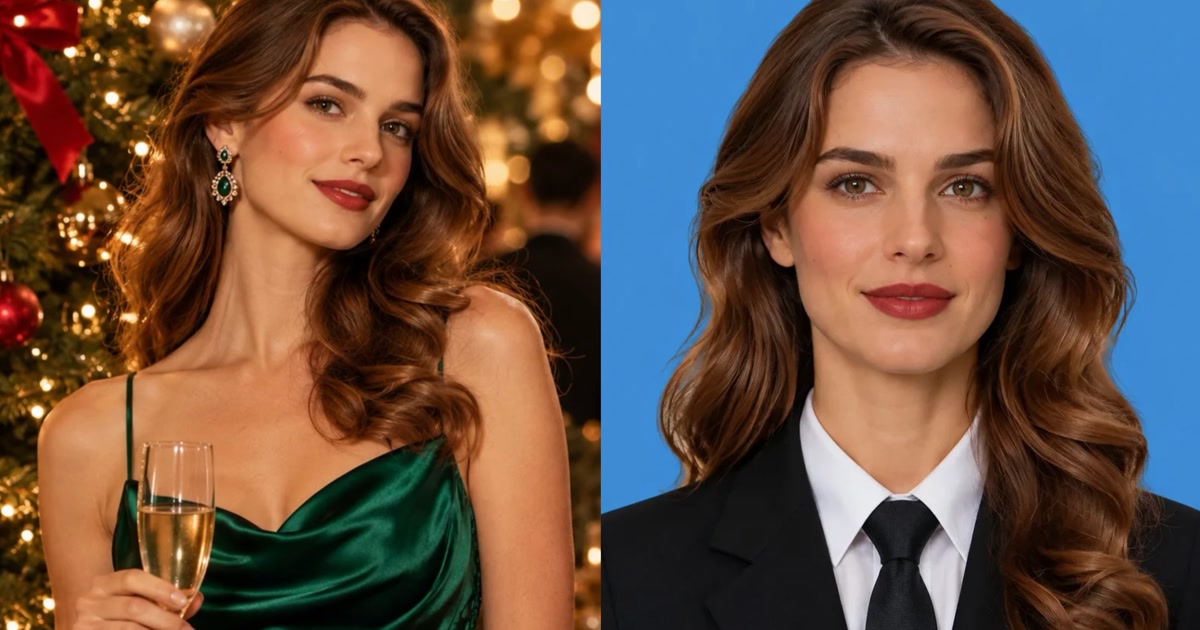
One-Click ID Photo: No prompts needed Generate with one click
Key takeaways
- One-Click ID Photo turns an ordinary photo of you into an ID-style portrait in one pass. You choose a white, blue or red background and a size, and you get a single photo plus a nine-grid print sheet from the same run.Choose color and size from the form, not from habit.
- Size is where most rejections happen. A US passport photo is 2×2 inches (51×51 mm), a UK passport photo is 35×45 mm, and a Chinese visa photo is 33×48 mm. They are not interchangeable.
- AI-made ID photos suit everyday uses, not passports.
It is 4:40 p.m. and an email lands: “Please send a blue-background 2-inch photo for the badge system by tomorrow morning.” You have a decent photo from last weekend. The photo studio closes at 6, and you are not sure whether “2-inch” means what you think it means.
That small panic is the real reason people search for a one-click ID photo. The tool is the easy part. The hard part is knowing which color, which size and which uses are safe. This guide covers all three, then shows how Movcl’s One-Click ID Photo template fits in.
First, decide whether an AI photo is allowed
Not every ID photo is the same kind of document. Before you pick a color, sort your request into one of three groups.
| Situation | Examples | What to do |
|---|---|---|
| Use a real photo | US passport, UK passport | The US State Department asks for an original photo with no filters or digital changes, and says AI-generated or AI-edited photos are not acceptable. The UK passport service says the photo must be unedited and you can’t “correct” it. |
| Check first | Visas, residence permits, exam registrations | Specs often list color, size and recency but may not say much about editing. Ask the application center or read the notice before you submit. |
| Usually fine | Resume photos where they’re customary, staff badges, HR and school portals, membership cards | If the organization doesn’t publish an editing ban, an ID-style photo that still looks like you is normally enough. The issuer has the final say. |
This split shapes the rest of the article. The template is built for the third group and is a convenience for some of the second. It is not a way around the first.
White, blue or red: which background goes where
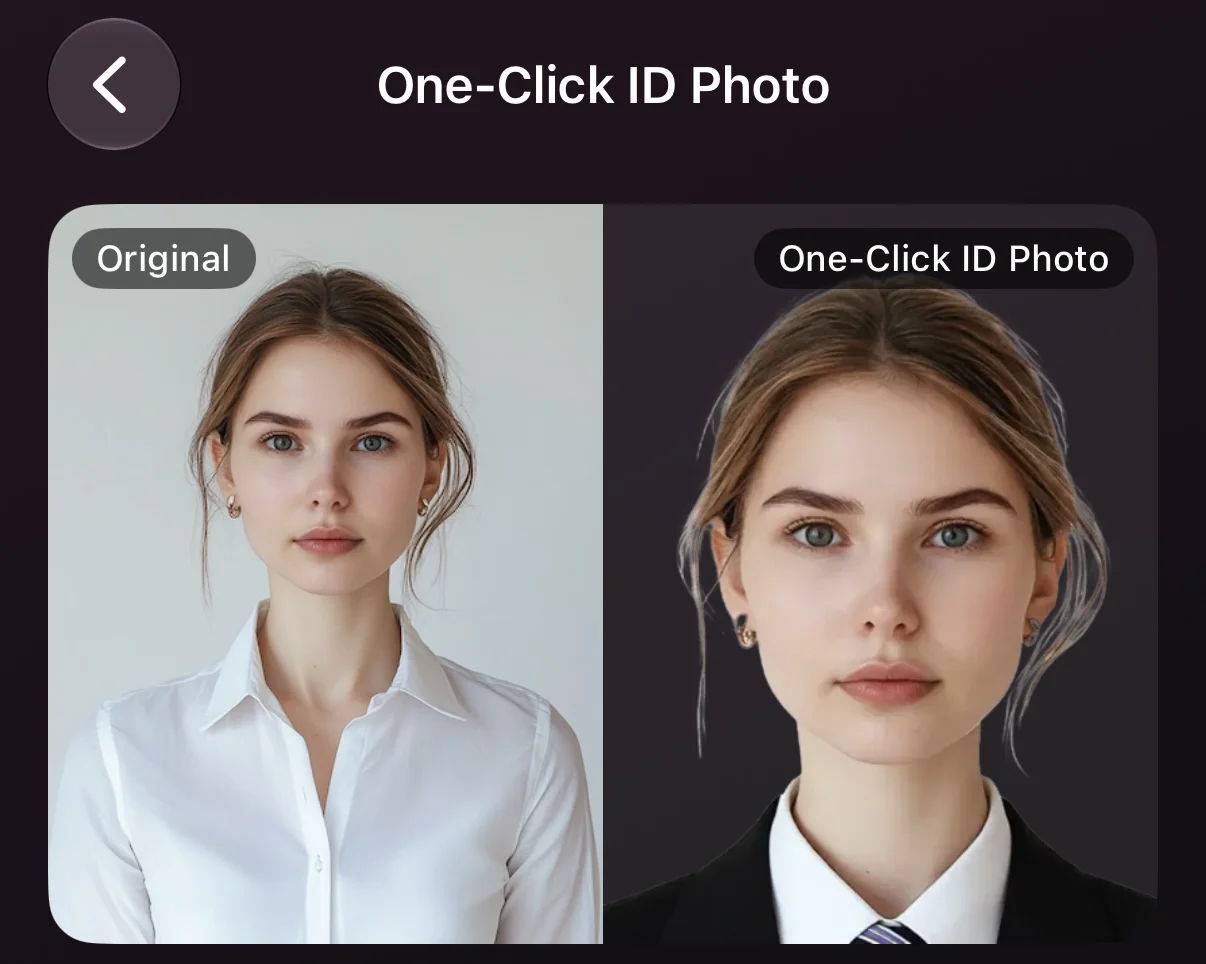
Background color is not a style choice. Forms ask for a specific one, and the safest way to choose is to read the form first. These are the patterns you will meet most often.
White
The global default
- US passports and visas ask for white or off-white.
- Chinese visas ask for white or near-white.
- Watch out: a white shirt vanishes, and pale hair edges can look fuzzy.
- Wear: a solid mid or dark top.
Blue
Resumes, badges, some forms
- Common for resumes, student IDs and work systems.
- Some Chinese permit forms ask for a blue-background 35×49 mm photo.
- Watch out: blue clothing blends in, and the shade should stay even.
- Wear: white, black or a warm solid color.
Red
Specific local paperwork
- Mainland China’s marriage registration lists 2-inch red-background photos.
- Photo-service guides report red for some Indonesian documents.
- Watch out: red clothing disappears, and hair fringing shows more.
- Wear: white, light grey or dark navy.
Two details trip people up. First, “white” and “off-white” are both accepted by the US and China, but a gray cast from poor lighting is not. Second, some offices accept more than one color. Beijing’s permanent-residence family-reunion list, for example, accepts white or light blue. When a form offers a choice, pick the first color it names.
Pick the size before you generate
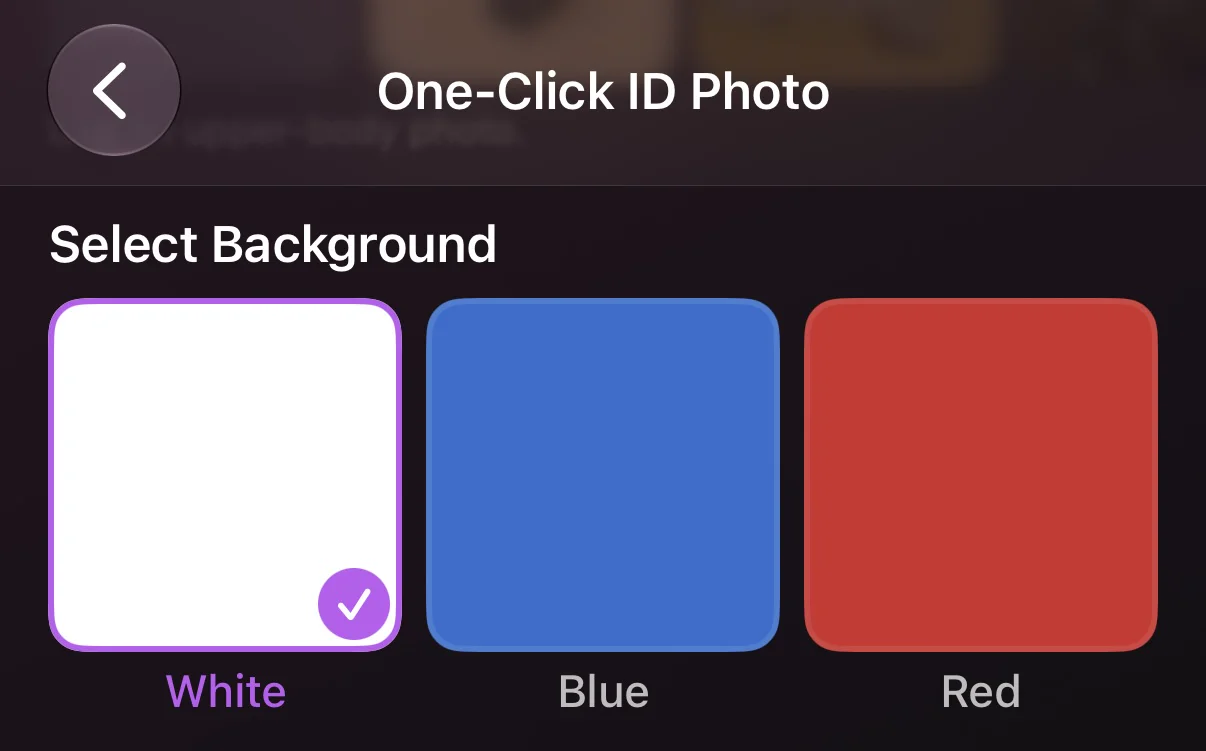
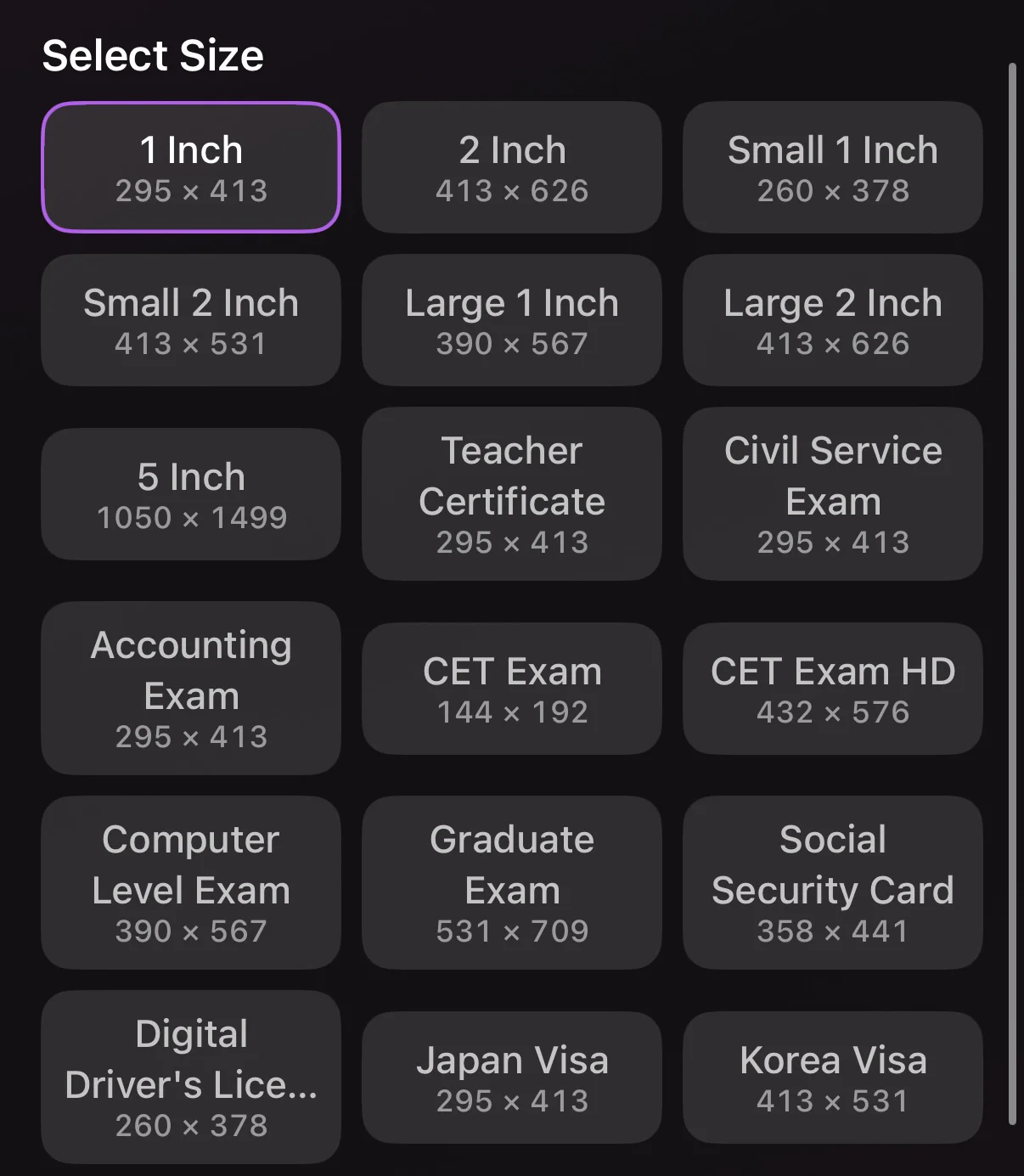
The word “inch” on Chinese forms does not mean one inch, and a US “2×2” is not a “2-inch” photo. Measure in millimeters and you will avoid most of the confusion. Here are the sizes you will see most often, with the uses we found in official notices.
| Size | In mm | Where you’ll see it | Note |
|---|---|---|---|
| 2×2 in | 51×51 | US passports, visas, green-card paperwork | White or off-white, original photo only |
| 35×45 mm | 35×45 | UK passports and many other countries, plus work and ID systems that ask for “passport style” | Plain light background; head height 29–34 mm for UK |
| “Small 2-inch” | 33×48 | Chinese visas and passports | White background, color, taken in the last 6 months |
| “2-inch” | 35×49 | Chinese permit and residence forms; the form may specify the background | Close to, but not the same as, 33×48 |
| “1-inch” | about 25×35 | Resumes, domestic forms and student files | Common standard; confirm on the form |
Never reuse a photo across sizes by cropping. A 2×2 inch US photo is too big for a Chinese visa, and a 35×45 mm Schengen-style photo is rejected during online verification for China. If your forms disagree, generate each size separately.
Single photo or nine-grid? You get both in one run
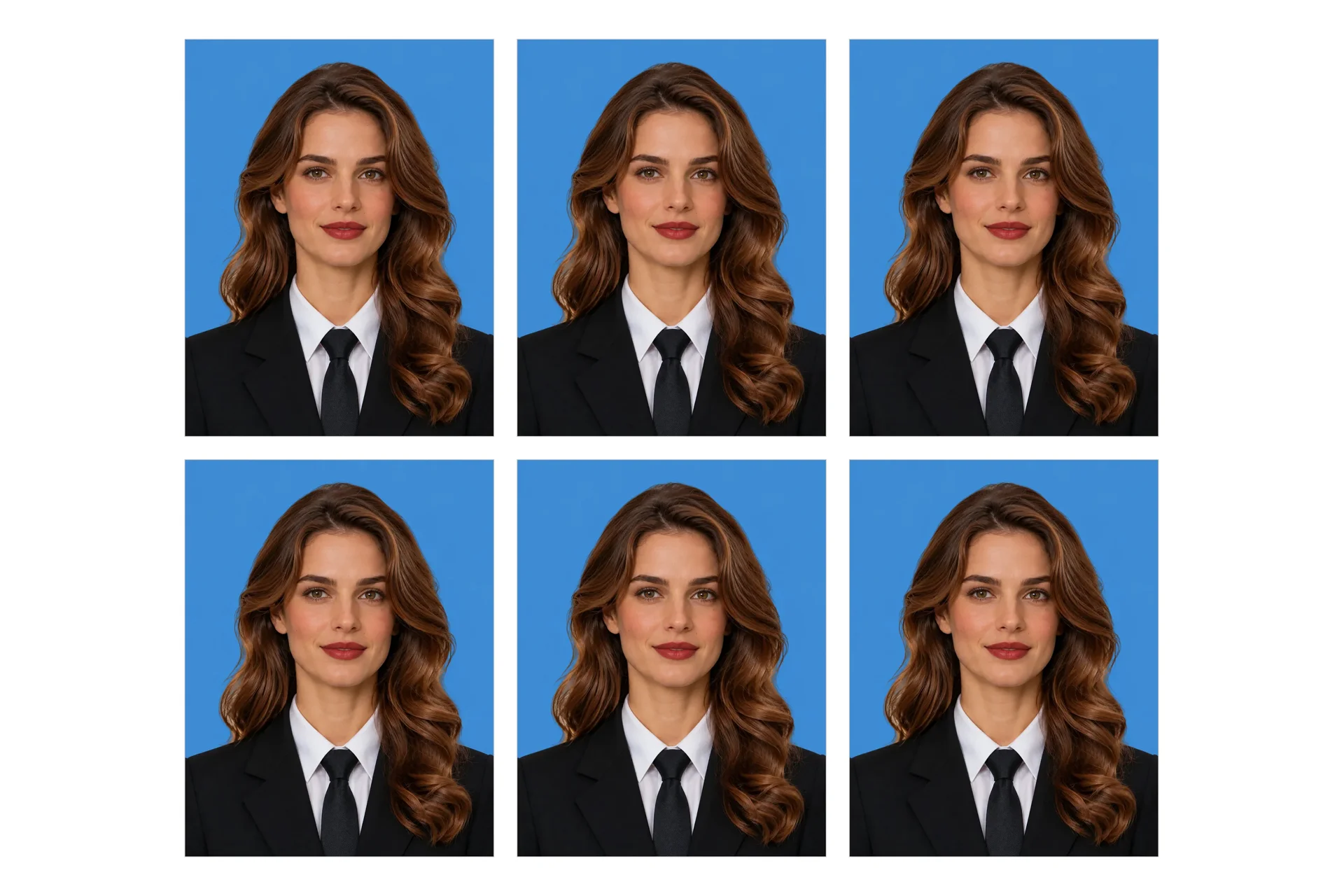
One-Click ID Photo returns two files from a single generation. The single photo is for anything you upload. The nine-grid is the same portrait laid out nine times on one sheet, for anything you print.
Single
For uploads
Nine-grid
For the print shop
Use the single photo for HR portals, school systems and online applications. Take the nine-grid to a print shop or home photo printer when a form asks for a glued-on photo or several copies, then cut along the gaps. If an official page says photos must be professionally printed, as the UK passport service does for paper applications, follow that instead of printing at home.
How to use One-Click ID Photo in Movcl
- Check the form first. Write down three things: background color, size in mm and whether the issuer bans edited photos. If it bans them, stop here and use a real photo.
- Choose your source photo. A front-facing shot at eye level in even daylight works best, with your hair off your face and both ears visible.
- Open the One-Click ID Photo template in the Movcl app and upload the photo.
- Pick the background color and the size that match your form. The exact gem cost is shown in the app before you confirm.
- Generate and check. Most image generations take 1–3 minutes. Compare the result with your real face, then save the single photo for uploads and the nine-grid for printing.
Make the source photo do the heavy lifting
A template can replace a background and apply a clean ID-style framing. It cannot fix a bad starting photo. These habits make the biggest difference, and they cost nothing.
- Face a window, not a lamp. Soft daylight on both sides of your face avoids the one-sided shadow that causes many rejections.
- Stand a meter or so from the wall. That distance keeps your shadow off the background even though the background will be replaced.
- Turn off portrait mode and beauty filters. Both change your face and edges before the template ever sees the photo.
- Remove your glasses. Most passport and visa rules don’t allow them, and glare is the hardest flaw to repair afterwards.
- Wear a solid color that contrasts with your chosen background. Dark or mid tones on white, warm or neutral tones on blue, white or navy on red.
- Keep a neutral expression with your mouth closed. That is the safe default for nearly every ID standard.
Check before you submit
- Size in millimeters matches the form, not just the word “inch.”
- Background is one even shade, with no halo or ragged edge around your hair and shoulders.
- Head size fits the range. UK passports ask for 29–34 mm from chin to crown, and Chinese visas ask for 28–33 mm.
- File limits are met for uploads. Chinese visa uploads, for instance, are often limited to roughly 40–120 KB, so check the portal.
- It still looks like you. Zoom to 100% and compare skin tone, jawline and eyes with a recent real photo.
Scenario cheat sheet
| You need… | Color | Size | AI-made photo? |
|---|---|---|---|
| Resume photo where it’s customary | White or light blue | 1-inch or 35×45 mm | Usually fine |
| Staff badge or HR system | Whatever IT specifies; white if unspecified | As listed in the request | Usually fine, ask HR |
| School or exam portal | As stated; blue or white most often | As stated | Check the portal rules |
| Chinese permit or residence form | As stated, often white or blue | 35×49 mm for many forms | Check with the office |
| Marriage registration in mainland China | Red | 2-inch, couple photo | Not a fit: it’s a two-person photo |
| Passport or visa | Usually white | Per country | No: use a real, unedited photo |
On resumes, remember that photos are customary in some countries and discouraged in others. In the US and UK, most employers don’t expect one, so check local norms before you add it.
Frequently asked questions
- Can an AI-made ID photo be used for a passport?
- Generally no. The US State Department asks for an original, unedited photo and says AI-generated or AI-edited photos are not acceptable, and the UK passport service says you can’t “correct” your passport photo. Use a real, unedited photo for passports and, unless the issuer says otherwise, for visas.
- What background color should an ID photo be?
- Follow the form. White or off-white is the default for passports and most visas. Blue is common for resumes, school and work ID systems and some Asian application forms.
- What size is an ID photo?
- It depends on the document: 2×2 inches (51×51 mm) for US passports and visas, 35×45 mm for UK passports and many other countries, and 33×48 mm for Chinese visas. The sizes are not interchangeable.
- Can I wear glasses in an ID photo?
- Take the source photo without glasses. Most passport and visa rules don’t allow them, and glare is difficult to fix afterwards.
Need an ID-style photo tonight?
Pick a color and a size, and get a single photo plus a nine-grid print sheet from one generation, right from your phone. New users get starter gems on signup, no credit card needed.
Try One-Click ID PhotoSources
- U.S. Department of State, passport photo requirements (travel.state.gov)
- GOV.UK Passport Service, rules for digital passport photos and photo guidance for photographers
- Visa Application Service Center for China, photo notices for visa applications (visaforchina.cn)
- Visafoto, photo background guides for blue and red backgrounds