


How to Make a Christmas Card Photo Without a Photoshoot
No photographer, no matching sweaters ordered in a panic, no toddler meltdown on a tree farm. Just the photos already sitting on your phone — and about an hour.
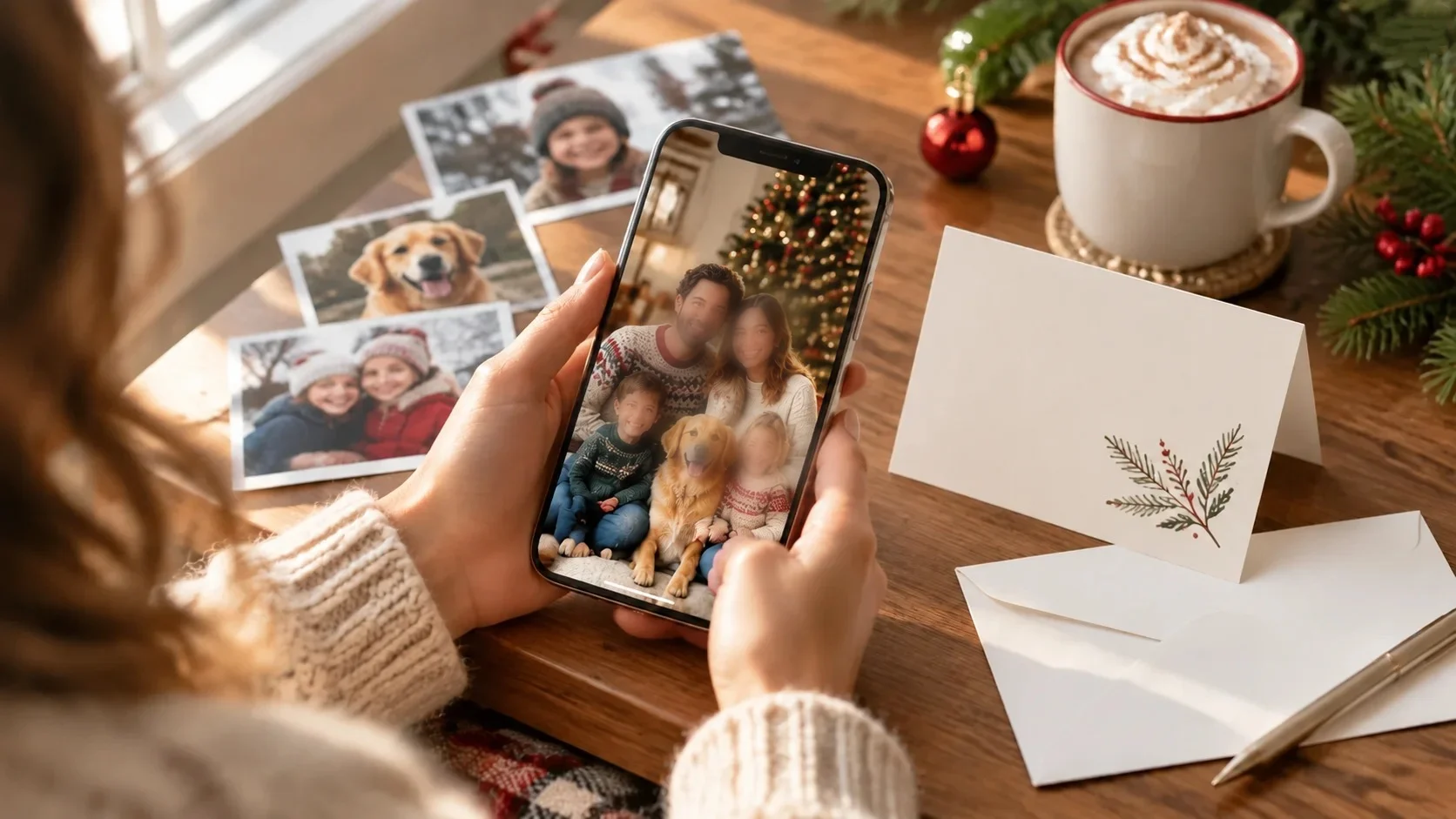
Last year, our "Christmas card photography shoot" was absolutely perfect, but the cost... This year, I think I have better ideas.
I'm skipping the shoot entirely and building the card photo from pictures we already have — a few good ones from the summer, a clear selfie of each of us, and an AI photo app to handle the holiday part. I tested the whole process early so you can see what actually works, what doesn't, and where AI still trips up.
The short version
- Pick one clear, well-lit photo per person (or one real group photo).
- Decide your look: holiday outfits, a festive scene, or an illustrated card.
- Generate it with an AI photo app, then zoom in and check the details.
- Drop it into a card template, export at 300 DPI, and order prints by early December.
First, what you actually need
The single biggest factor in how your AI card photo turns out is the photo you start with. AI can change an outfit or a background convincingly; it can't invent a sharp face out of a blurry one. Before you open any app, find source photos that tick these boxes:
- Face clearly visible — looking roughly at the camera, not in profile, no sunglasses.
- Even light — daylight near a window is perfect. Avoid harsh overhead light that leaves shadows under the eyes.
- Sharp, not zoomed — an original from your camera roll, not a screenshot or a photo that's been sent through a messaging app (those get compressed).
- Nothing covering the face — hair, hands, a coffee mug, a dog's ear.
- Recent enough — Grandma will notice if the baby on the card is clearly six months younger than the baby she held at Thanksgiving.
If you've never used a face swap app before, it's worth reading the 5 mistakes first-time users make — almost all of them come down to the source photo.
Five ways to get a card photo without a shoot
There's more than one route here, and they're good at different things. Here's how they compare:
| Method | Best for | Effort | Watch out for |
|---|---|---|---|
| Existing photo + card template (no AI) | You already have a great family photo from this year | Low | Summer clothes and green trees on a Christmas card can feel off |
| AI outfit change | Keeping a real photo but swapping in sweaters, plaid, or Santa hats | Low | Collars and sleeves near hands and hair; check edges closely |
| AI face swap into a holiday scene | The full "by the fireplace" or "snowy cabin" look without leaving home | Low to medium | Works best one face at a time; skin tone and lighting should match the scene |
| AI art redraw (illustrated card) | Storybook, watercolor, or anime-style cards that are obviously artistic | Low | Likeness can drift; pick the version that still looks like your family |
| AI short video (digital card) | Texting or posting a moving holiday greeting instead of mailing | Low | Not printable; keep a still version for paper cards |
My honest take: if you have a strong real photo, outfit change gives the most natural result, because the faces, poses, and expressions are all genuinely yours — the AI only touches the clothes. If you want a fully staged holiday scene, face swap into a template is the quickest way there. And if anyone in the family is camera-shy, an illustrated card sidesteps the "does this look real?" question completely.

Step by step: building the card photo
Here's the exact process I used. I did it in Movcl because it has outfit change, face swap, art redraw, and short video in one place, but the same steps apply to most AI photo apps.
-
Gather your source photos
Make a phone album called "Card 2026" and drop in the best one or two photos of each person, plus any decent group shot. This takes ten minutes and saves you from scrolling through 14,000 photos inside an app.
-
Choose one look for the whole card
Decide before you start generating: cozy sweaters, a snowy outdoor scene, a fireplace, or an illustrated style. Mixing a photoreal fireplace shot with a watercolor portrait on the same card almost always looks messy. One look, applied to everyone.
-
Generate a few versions of each image
Upload a source photo, pick a holiday or winter template (or an outfit), and generate. Do two or three versions per person — results vary, and the second try is often the keeper. If you're curious why some outfits come out cleaner than others, here's how AI actually reads clothing.
-
Zoom in and check the details
This is the step people skip, and it's the one that matters for print. A card is held in someone's hand a few inches from their face. Run through the checklist in the next section before you go any further.
-
Lay out the card
Put your final image (or grid of images) into a card template from whichever print service you like. Keep the text simple — a greeting, your family name, the year. Don't ask an AI image tool to write the text inside the photo; type it in the card layout instead, where it'll be crisp and spelled right.
-
Export at print resolution and order
Save the highest-resolution version the app gives you, and check it against the size table below before uploading to the print service.
The detail check (do this before you print)
AI image tools have gotten very good, but they still have predictable weak spots. Zoom in to at least 200% and look at:
- Hands and fingers — count them. Watch for fingers merging into mugs or sleeves.
- Glasses — frames should be continuous, and both lenses should match.
- Hairlines and ears — the edge where a swapped face meets the template is where blending issues show up.
- Jewelry and buttons — earrings that don't match, buttons that wander off the shirt.
- Background text — signs, ornaments, or stockings with nonsense lettering. Crop or regenerate.
- Lighting direction — if the fireplace glow is on the left of everyone's face but one person is lit from the right, it'll feel subtly wrong even if nobody can say why.
An honest note on group photos
Most AI face swap and outfit tools, Movcl included, work most reliably with one face per image. If you try to swap four faces into one family template at once, results get unpredictable. What worked for me: make one holiday portrait per person and arrange them as a grid card. It reads as intentional, and every face comes out clean. If you have a real group photo you love, use outfit change on that instead of face swap.
Print sizes: how many pixels you need
Print services generally want 300 dots per inch for sharp results. Multiply the card size in inches by 300 and you get the minimum pixel size. Here are the common ones:
| Card size | Minimum pixels | Notes |
|---|---|---|
| 4 × 6 in (flat card) | 1200 × 1800 | Fine for a single portrait |
| 5 × 7 in (most common) | 1500 × 2100 | The standard holiday photo card size |
| 5 × 5 in (square) | 1500 × 1500 | Great for grid layouts of individual portraits |
| Digital card (Instagram / text) | 1080 × 1350 | 4:5 portrait fills the feed and phone screens well |
If your image is a little under the minimum, most print services will warn you. A small shortfall usually still prints acceptably at 5×7; a big one means a soft, blurry card. Use the full-resolution download, not a screenshot of the result.
A realistic timeline
The whole point of skipping the photoshoot is less stress, so don't recreate it by starting on December 15th.
| When | What to do |
|---|---|
| Early to mid-November | Collect source photos; take a fresh, well-lit selfie of anyone missing one |
| Late November | Generate images, do the detail check, finalize the layout |
| First week of December | Order prints, so there's time to reprint if something comes out wrong |
| Mid-December | Mail cards — check USPS's posted holiday shipping deadlines for this year, especially for out-of-state or international addresses |
A few things to think about first
Should you tell people it's AI?
For a holiday card, there's no rule that you have to. It's a greeting, not a news photo, and plenty of cards are already heavily edited. That said, if your family would find it fun, a tiny "Made with AI, because nobody would sit still" line on the back gets a laugh. For a deeper look at where AI images do and don't raise legal questions, see Is It Legal to Use AI-Generated Photos of Yourself?
Ask the adults whose faces you're using
Putting your sister-in-law's face into an elf costume is funny to you. It might not be to her. If an adult's face is going on a card that gets mailed to sixty people, a quick text first is good manners.
Be thoughtful with kids' photos
Your children's faces are going into an app's servers to be processed. Before uploading, check what the app does with photos — whether they're stored, for how long, and whether they're used to train models. Movcl doesn't use your photos to train its models, which is one reason I was comfortable using it here. If you want to know what to look for in any app, I went through it in Does This App Train on Your Photos?
The best card photo is the one where everyone looks like themselves — just warmer, cozier, and better dressed than they were in July.
Mistakes I made so you don't have to
- Using a group-chat photo as the source. It had been compressed twice. The face came out waxy. The original from my husband's phone was night and day.
- Mixing styles. My first draft had two photoreal portraits and one anime-style one because I liked how it looked on my daughter. On the card, it looked like a mistake.
- Trusting the thumbnail. Everything looks perfect at phone-preview size. A sixth finger only showed up when I zoomed in.
- Forgetting the pet. Face swap tools are built for human faces, so the dog didn't fit the template. The fix was easy: I used his real photo as one tile in the grid. He looked festive enough in a bandana.
Frequently asked questions
Will an AI Christmas card photo look fake when printed?
It can if you skip the detail check. Zoom in on hands, glasses, jewelry, hairlines, and any text before ordering, and make sure the image has enough pixels for the card size — about 1500 × 2100 for a 5×7 card.
How do I get the whole family in one AI Christmas photo?
Most AI face swap and outfit tools work best with one face at a time. The most reliable approach is to create one image per person and arrange them as a grid, or start from a real group photo and only change the outfits or background.
When should I order Christmas cards to mail them on time?
Aim to finish your photo by late November and order prints in the first week of December. Check USPS's posted holiday shipping deadlines for the year, especially for cards going out of state or overseas.
Can I use an old family photo instead?
You can, and it can be lovely — especially for a "through the years" card. If the photo is faded or scratched, restore it first. I walked through that process in I Used AI to Restore an Old Photo of My Grandparents.
Make this year's card photo in Movcl
Outfit change, face swap, art redraw, and short video — all from one photo you already have. Your photos are never used to train our models, and you can start with a free trial to see your results before committing to anything.
Try Movcl free